
How to Use the Dokolo Generator
Dokolo uses the same editor structure across receipts, invoices, and estimates. This guide walks through the four areas you need to understand first: the overall layout, the top bar, the live preview, and the right-side edit panel.
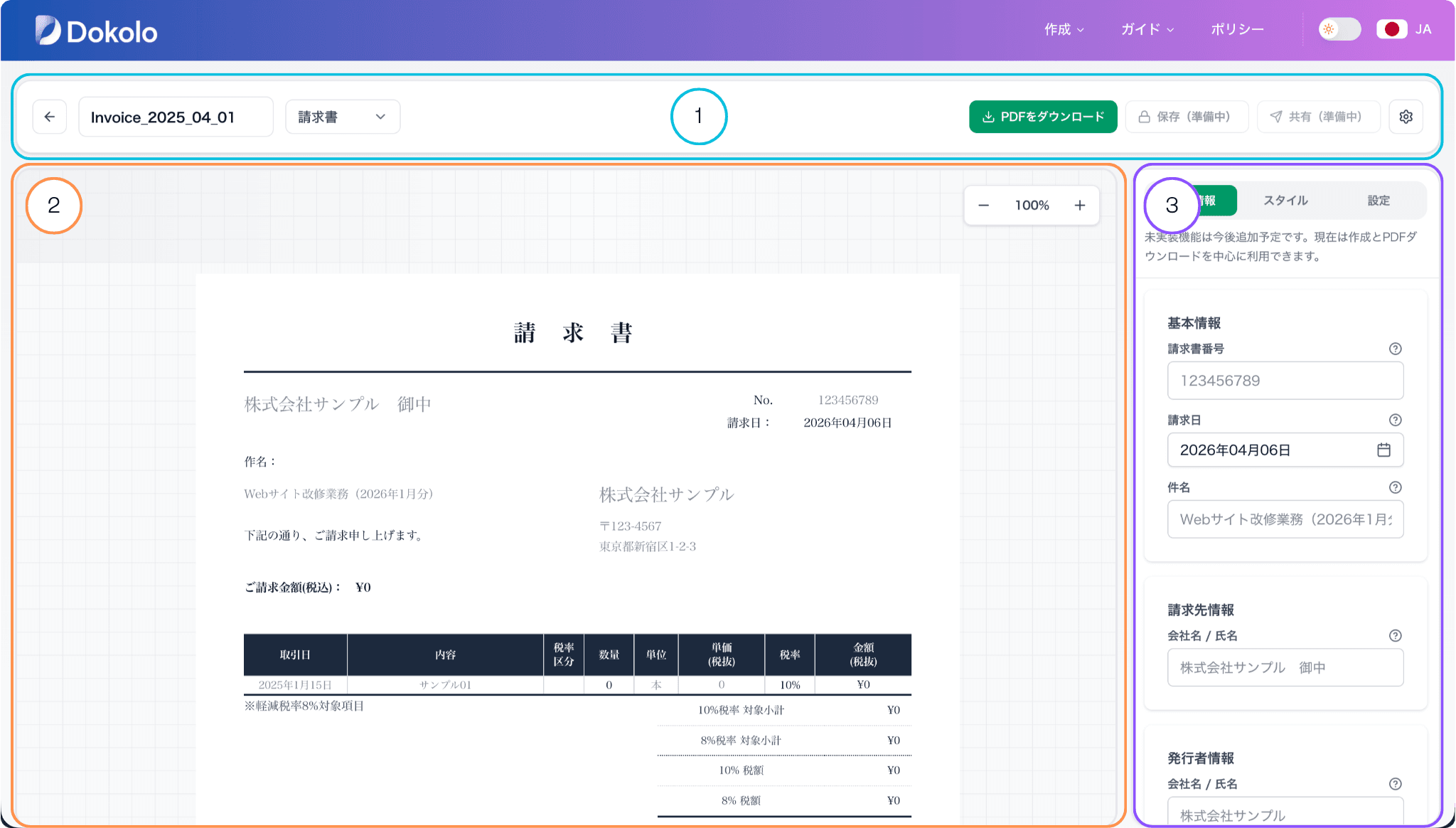
Dokolo keeps document actions, live output, and editing controls on the same screen.
The generator screen is divided into a header at the top, a preview on the left, and an edit panel on the right. Once you understand the role of each area, the full editing flow becomes much easier to follow.
1. Header / top bar
Use the header to go back, rename the file, switch document types, download the PDF, and open workspace settings.
2. Left preview
The preview shows the current document output as you work, so you can check layout and content before exporting.
3. Right edit panel
The edit panel is where you enter document data, adjust the visual style, and change document-wide settings.

The top bar handles document-level actions. The numbered screenshot matches the five blocks you interact with while editing.
1. Document name
Use the file name field to rename the current document before export.
2. Document type switcher
Open this menu to switch between receipt, invoice, and estimate. The editor structure stays the same, so you can move between document types without relearning the screen.
3. PDF download
This is the main action that is available now. Use it to generate the current document as a PDF from the same editing screen.
4. Save and Share
These buttons are visible in the layout, but they are still marked as in development. For now, the current workflow is to finish the document and download the PDF.
5. Workspace settings
Open the gear menu to adjust editor preferences such as default zoom, wheel or trackpad zoom behavior, and restoring the last draft on this device.
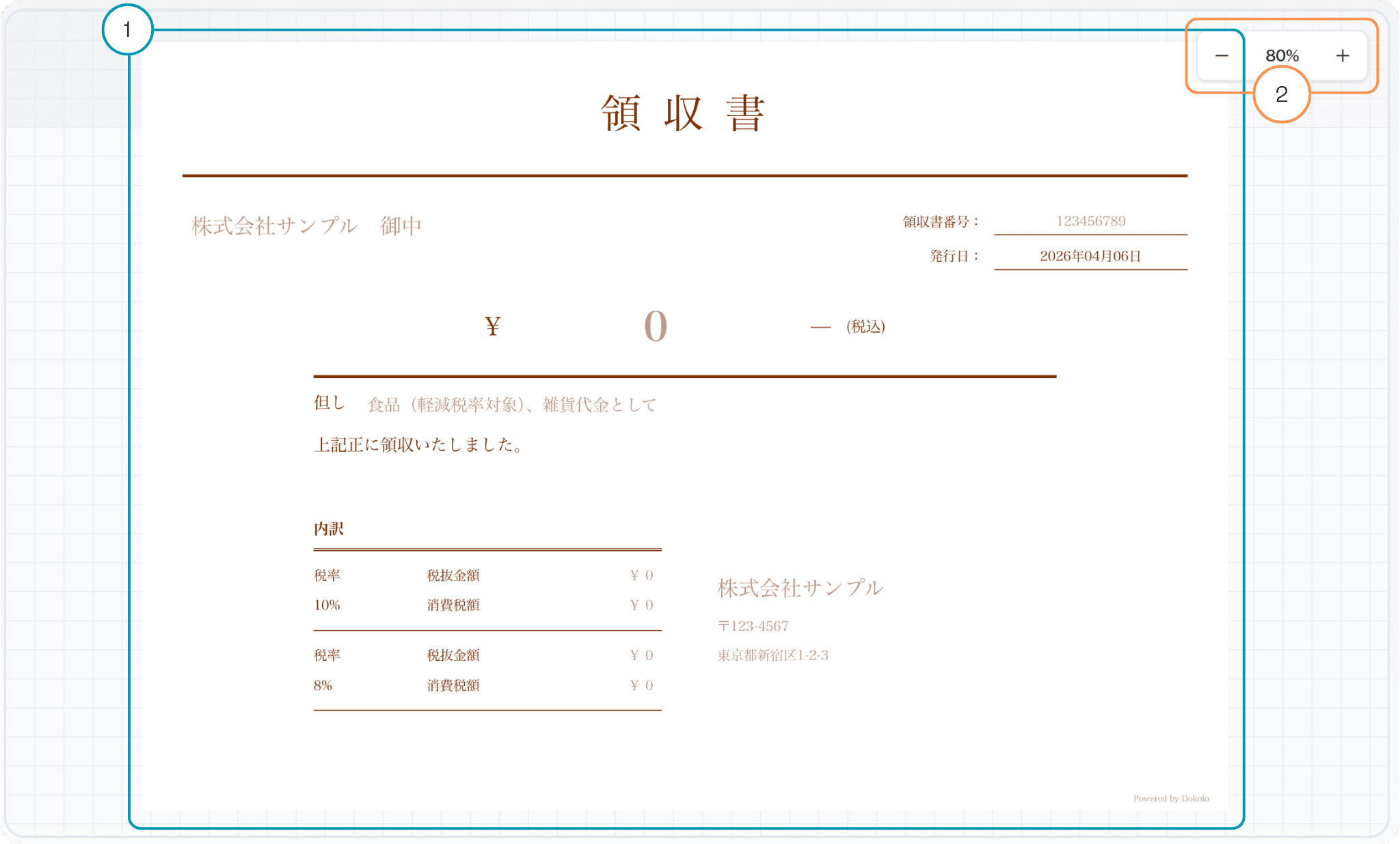
The preview area lets you verify the result while you edit. Values entered in the right-side panel appear here immediately.
1. Live document preview
This area shows the current document page itself. As you enter dates, amounts, line items, or issuer information, the preview updates right away so you can review the output in context.
2. Zoom controls
Use minus and plus to zoom out or in, and check the current zoom percentage in the middle. This makes it easier to inspect spacing, text size, and overall balance.
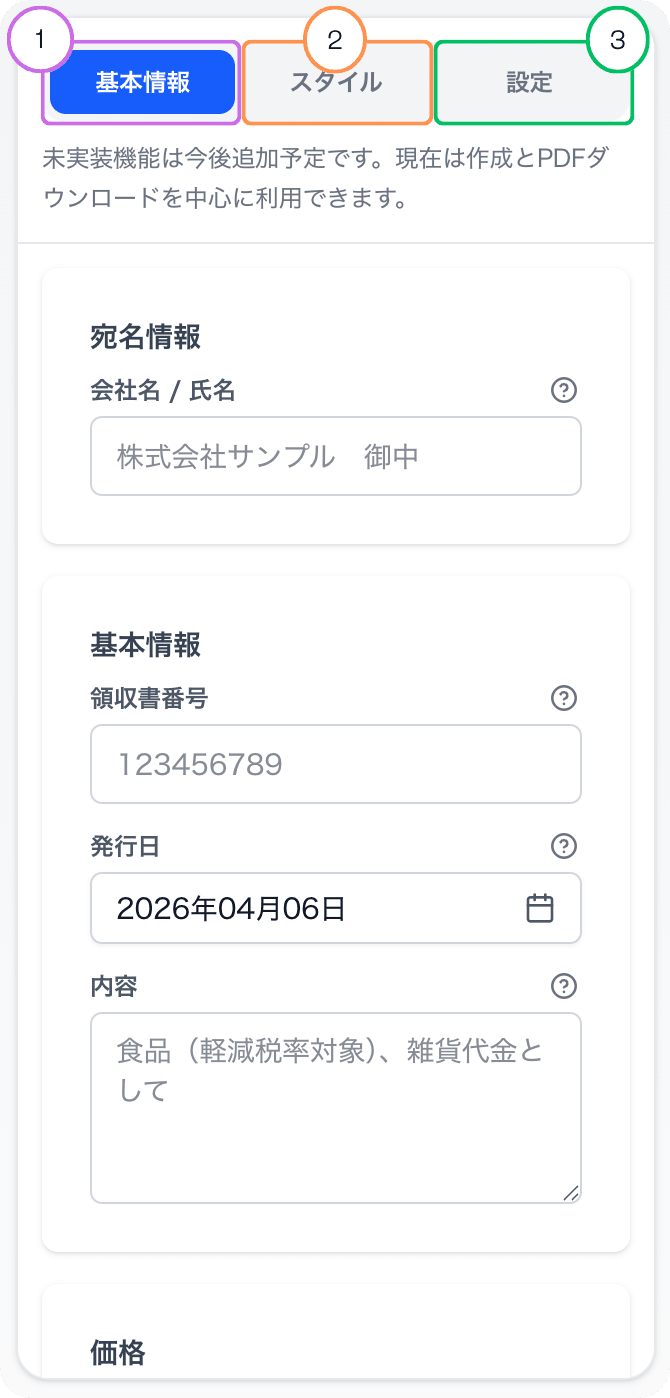
The right-side panel is where you control the document. The three tabs divide content entry, visual adjustments, and document-wide rules.
1. Basic Info
Use Basic Info to enter the actual document content. Depending on the document type, this includes recipient details, document numbers, dates, descriptions, amounts, line items, issuer details, payment info, and notes.
2. Style
Use Style to adjust the visual presentation without changing the business data. This is where accent colors are controlled, and more templates are planned for future updates.
3. Settings
Use Settings for rules that affect the whole document, such as date format and tax rounding. You can also reset the seal position here, and scheduled sending is shown as a feature still in development.
Open the editor and start creating
Go straight to the document editor and start creating a receipt, invoice, or estimate with the same workflow.
Open Editor